
No products in the basket.
Don't have Control Surface Studio 3 yet?
*Note: Server Updates relate to changes made on our server. You do not need to update your App in order to utilise these changes.
Server Update
Fixed
Value scaling Takeover mode had stopped working, this is now fixed.
Version 3.1.0 / 3.1.1
29/Oct/25
New
This new mapping type gives you the ability to select 16 controller inputs which will play the visible 16 pads on a drum rack.
A drum rack’s pads can be played by arming the track.
The first armed drum rack will be controlled.
LED Feedback options are available for various Drum pad states.
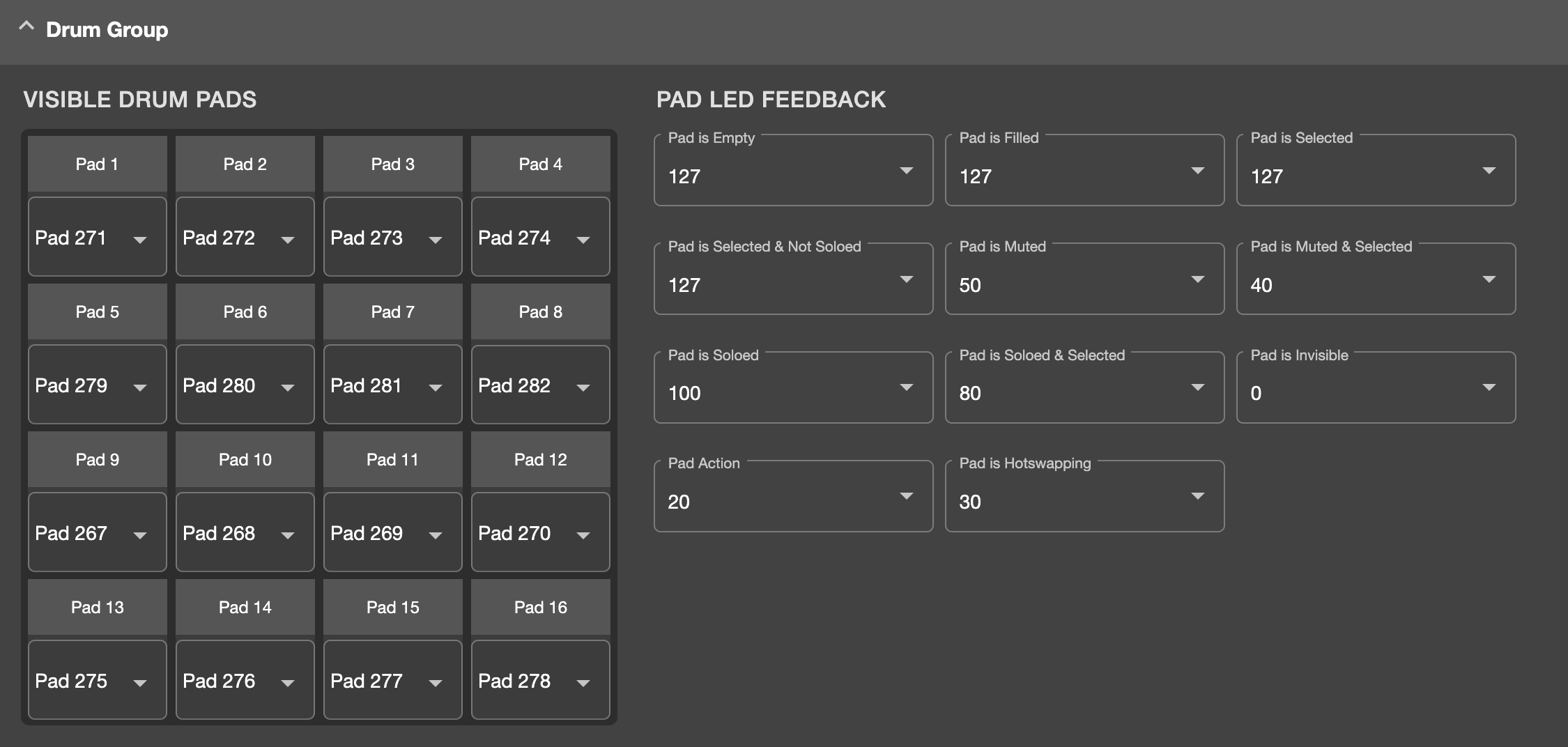
The Drum Group Mapping Type
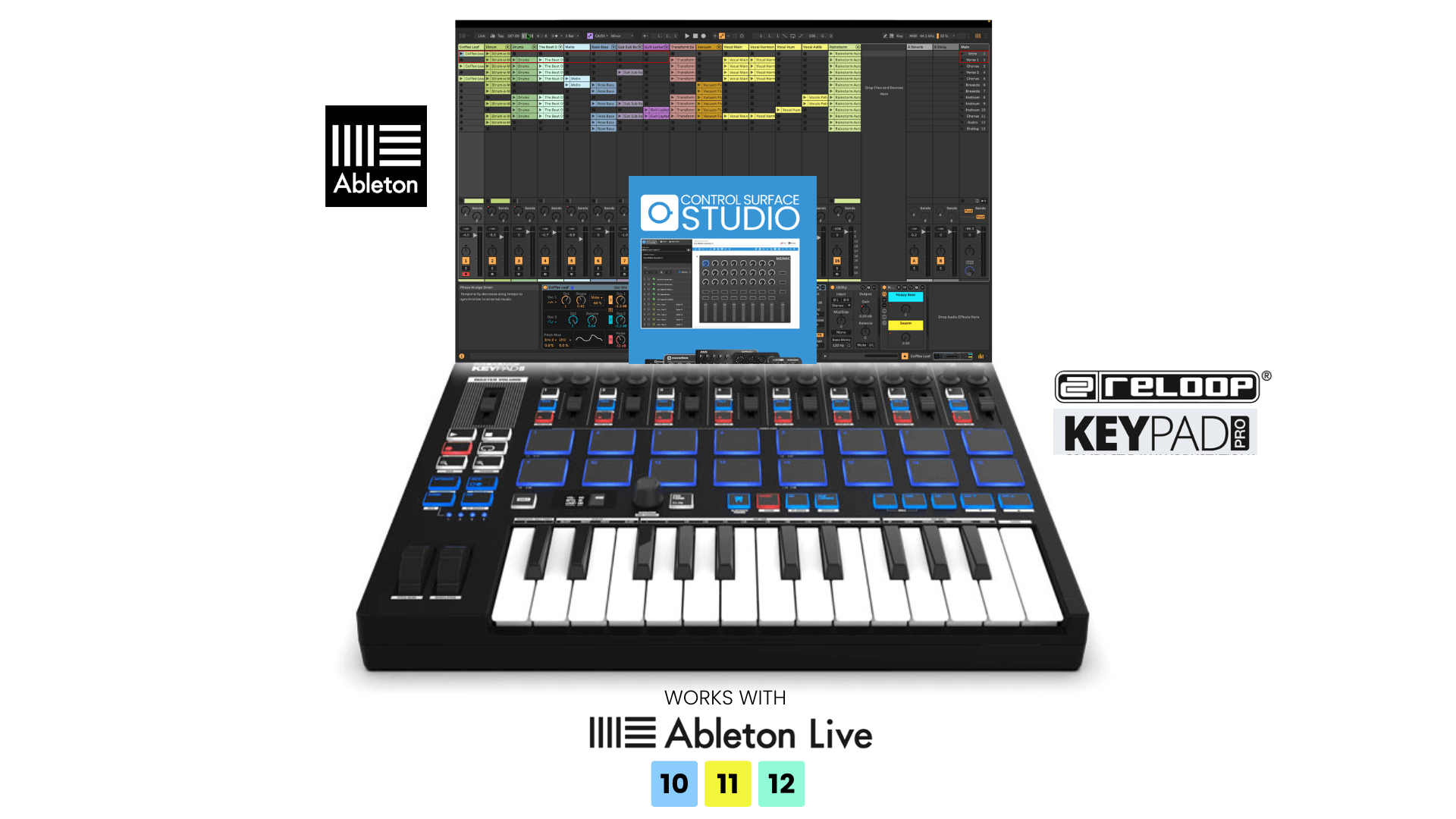
We have been working in collaboration with Reloop to bring you a free Keypad Pro script and Controller Template. These are both available in the ‘On Remotify’ section of the CSS App.
Loop: drum pads
Added a new drum pad loop option (with options in the path menu for drumpads and visible drumpads) Also - to target the drum group, use the new 'active drum device' option
path menu: active drum device
(Uses self.drum_device)
This is populated when a drum group maping is added/active - User be aware that it's only usuable when a drum group is active in the mode.
Listeners:
Each of these fire whenever the state of any track changes.
Any track arm changed
Any track monitor changed
Any track mute changed
Any track solo changed
Variables
The track number of the parameter which changed.
self.last_arm_changed
self.last_monitor_changed
self.last_mute_changed
self.last_solo_changed
self._cached_tracks
In the code we now have self._cached_tracks. This contains a current snapshot of various track states.
arm_state / monitor_state / mute_state / solo_state
Each track can be accessed by inserting the track number [1]
They each return true or false.
self._cached_tracks[1][‘arm_state']
self._cached_tracks[1]['monitor_state']
self._cached_tracks[1]['mute_state']
self._cached_tracks[1][‘solo_state']
Improved
Problem:
Selecting the controller input for a mapping required searching by input name.
Solution:
When a controller input menu is open,
press/turn an input to auto filter the menu to that input.
Then click the item to selected it.
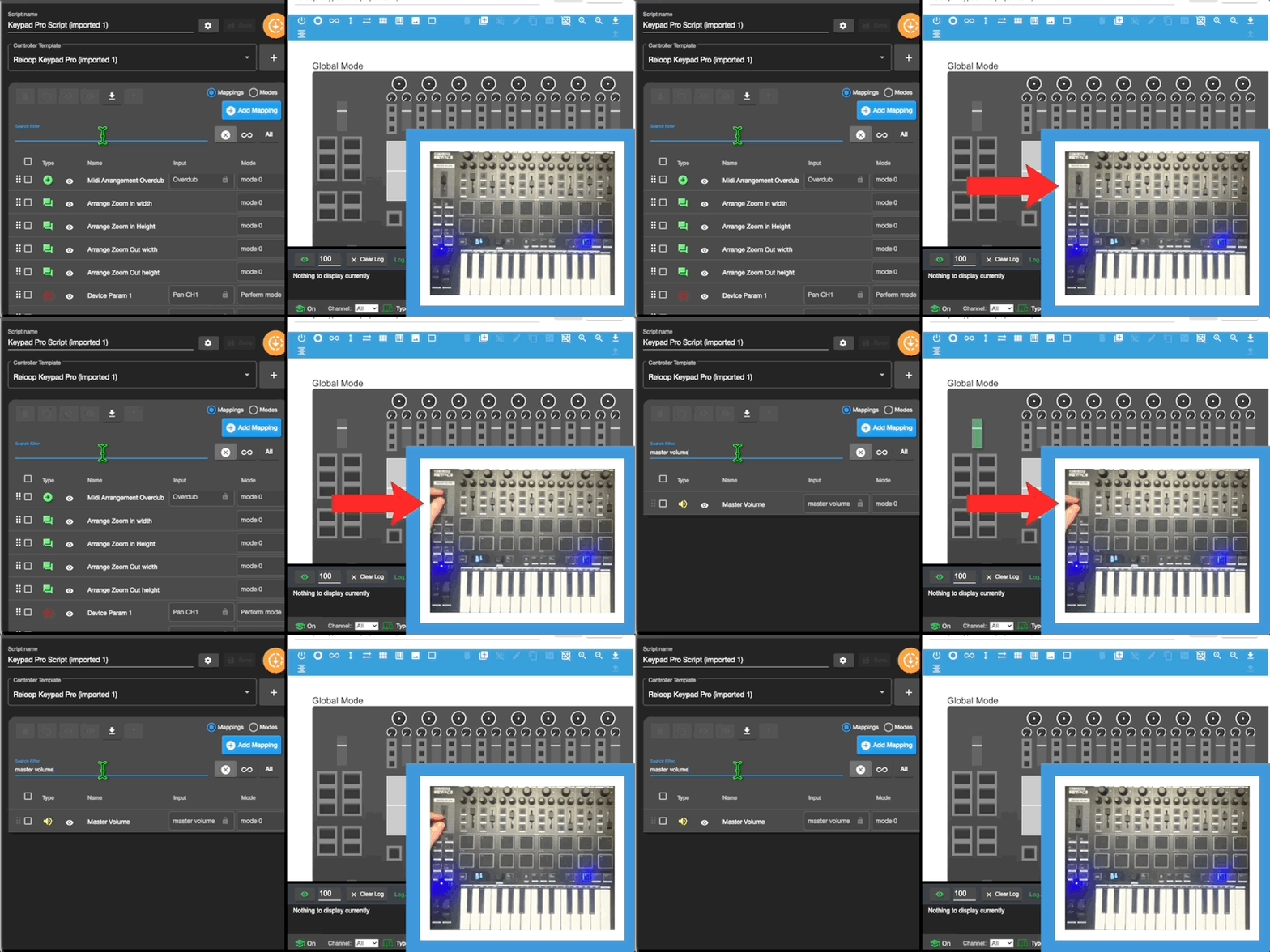
Click into the mapping search filter, then press/turn an input on the midi controller. If a matching controller input is found, the list will be filtered by it.
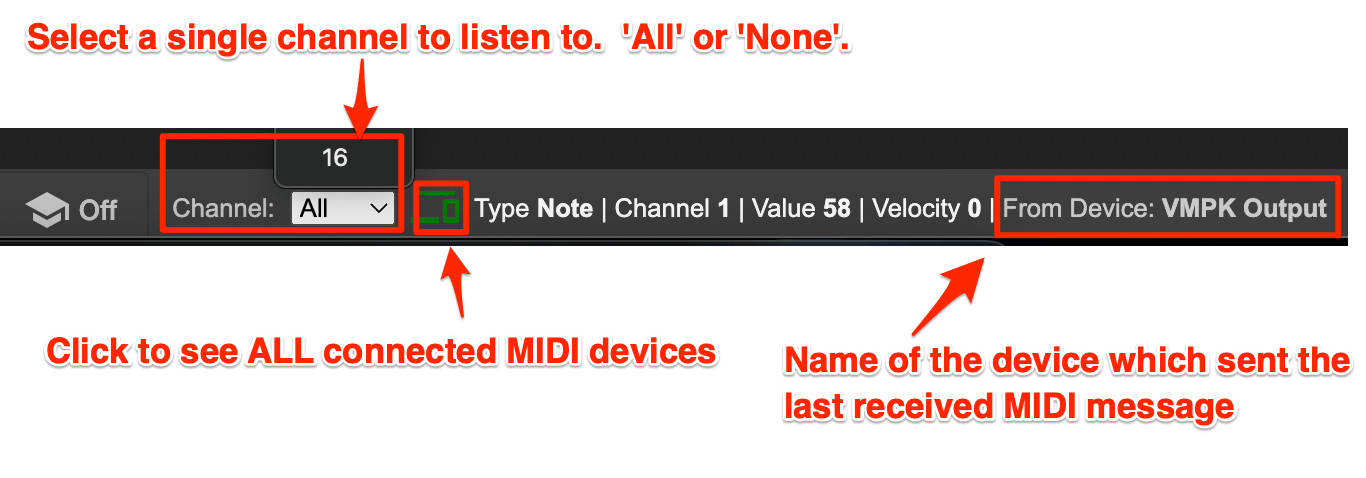
1. Added a new menu to select a single MIDI channel to listen to. Can also select ‘ALL’ or ‘None’.
2. Only the name of the MIDI controller which sent the latest MIDI message is displayed.
3. Clicking the green monitor icon shows all connected MIDI controllers.
Problem:
If you have many mappings in the table and scroll down, the headers eventually disappear out the top.
Solution:
The top portion of the table is remains static at the top while scrolling through mappings
In the mapping settings form for Session Box or Drum Group
Pressing a midi input which is set to a pad in the mapping will highlight it in green. Enabling to quickly see which pads your midi inputs are assigned to.
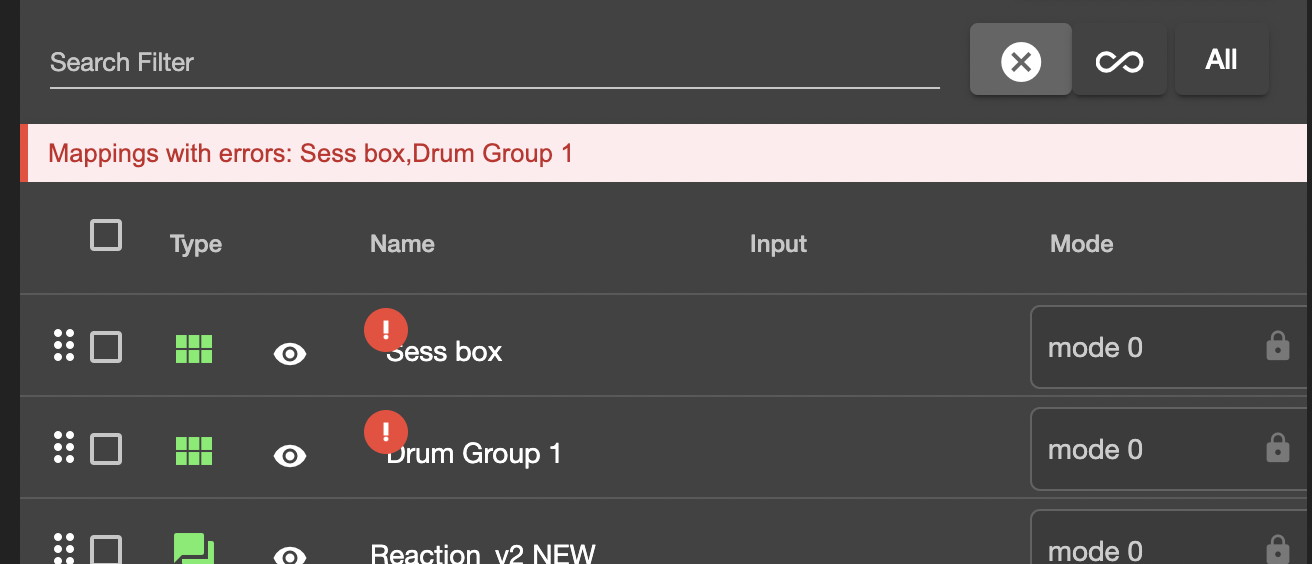
When mappings have errors, they now display at the top of the mappings table.
Previously an error alert would keep showing on the right side with no detail. This has now been removed.
The Tag columns are:
Manual Filters
Inputs (controller inputs)
Modes
Mapping Types
Live versions are now listed correctly. By major/minor versions.
Fixed
Problem:
When a script contained many mappings it noticibly slowed down.
Solution:
The many controller input, mode menus within the table were causing a heavy load. These are now lazy loaded, requiring a click to activate them first.
Other parts of the table have also been optimised.
If track highlight nav select was set to relative track but there was no session box active, the LED feedback for the track was wrong (it would be 1 track higher than it should have been).
This is now fixed
There were some issues with the MIDI data settings for the encoders on the right and a whole row of buttons missing (None, 8 Bars, 4 Bars, 2 Bars etc)
These have now been added/fixed
When trying to send raw MIDI data to midi controller from a reaction (action > midi controller > send raw midi data to controller), the code that CSS is generating was missing an extra set of parenthesis.
Before:
self._send_midi(145, 36, 127)
After:
self._send_midi((145, 36, 127))
See forum post: https://community.remotify.io/questions/question/send-raw-midi-data-to-controller/
Fixed issue where using Implicit arm was generating incorrect code
See forum post:
https://community.remotify.io/questions/question/track-implicit-arm-config-incorrect/
The sends loop code is incorrect.
When sends is selected as the loop in an action block, the code generated is:
self.song().tracks[0].sends
But it should be:
self.song().tracks[0].mixer_device.sends
This is now fixed.
See forum post: https://community.remotify.io/questions/question/how-to-reset-all-send-return-for-all-tracks-with-1-buttons/
Fixed active mode number.
Active Mode ID
returns the internal active_id value (as an int/number not a string)
Active Mode Number
returns the active mode's position number in the list of modes in the UI (counting from zero)
See forum post for details: https://community.remotify.io/questions/question/self-get_active_mode_id-produces-a-string-not-an-integer/
Removed the following listener options from the Reaction Listener menu as they don’t exist in the Live Object model.
is_view_visible
open_dialog_count
view_focus_changed
See forum post: https://community.remotify.io/questions/question/view-listeners-broken-in-2-9-0/
The selected Parameter listener now fires when device parameters are selected (previously it was only firing when mixer parameters were selected)
Version 3.0.2
15/Sep/25
Improved
The Highlight Navigation mapping type now has options to select 'relative track' and 'relative scene' for both scrolling and select track/scene.
See knowledge base article for details: https://community.remotify.io/knowledge/highlight-navigation/
Fixed
There was an issue where the highlight navigation would get stuck at collapsed grouped tracks. This is now fixed
Version 3.0.1
28/May/25
Fixed in 3.0.1
Settings.json file / settings folder wasn't being generated by CSS3 when the app was first loaded by a new user.
Version 3.0.0
27/May/25
New in 3.0
The Problem
Previously if you wanted mappings which were 'always active' in your script, meaning they remain active regardless of which mode is active, the only way to do this was to duplicate the mappings into every mode in your script.
Doing this was time consuming and it would require having many duplicate mappings, making management difficult and requiring oversized scripts.
The Solution
The new 'Global Mode’ is a mode which is always active in your script. Mappings added to this mode will always stay active. You can still change the 'Active Mode' the same as before, but the 'Global Mode' remains active at all times.
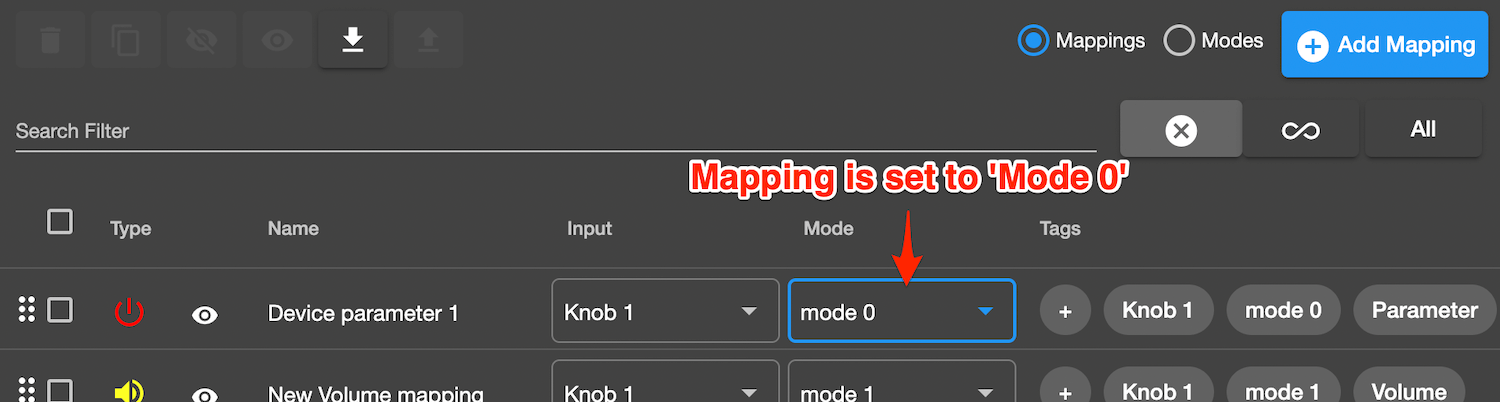
You can select the 'Global Mode' in the ‘Modes’ tab.
The Global Mode is automatically activated when the script is initialised.
You can change the script's ‘Global Mode’ at any time.
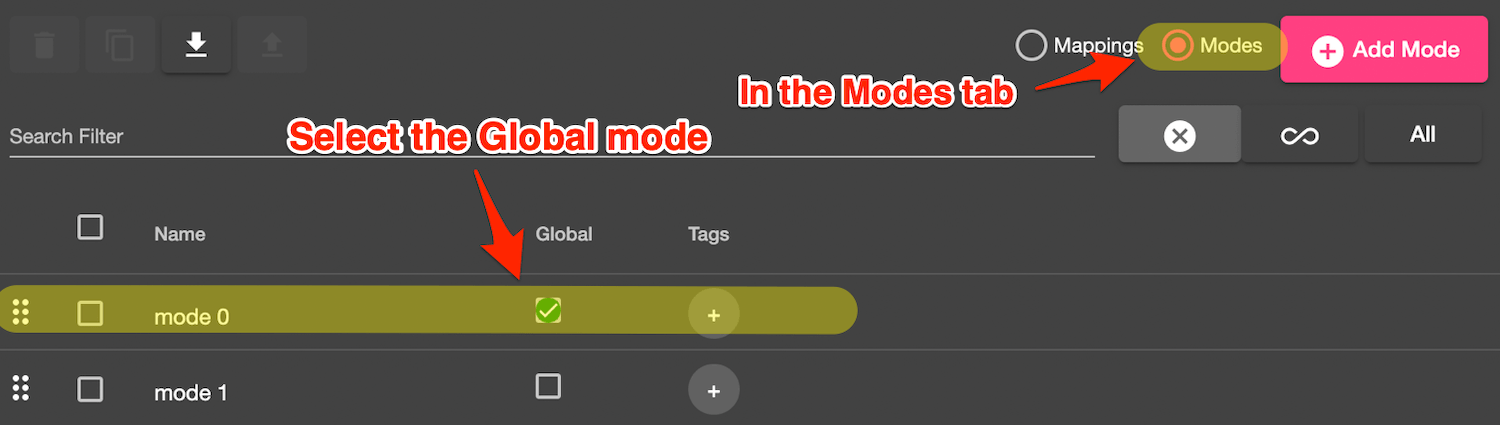
When you create a new script in CSS3, a mode named ‘mode 0’ is now included which is set as the global mode by default.
If you have a global mode and at least 1 other mode in your script, then there will be 2 modes active at all times, the 'Global Mode' and the 'Active Mode'.
The ‘Active Mode' can be any mode which is not set as the 'Global Mode'.
You can still change the 'Active Mode' at any time within your script using the ‘Mode Selector’ mapping type or a Reaction.
When your script is initialised in Ableton, the 'Active Mode' will be the first (none global) mode in the modes list.
The Problem
Previously there was no way to exclude mappings from being generated in a script. This was a problem when trying to quickly test scripts without some of your existing mappings included in the generation.
The Solution
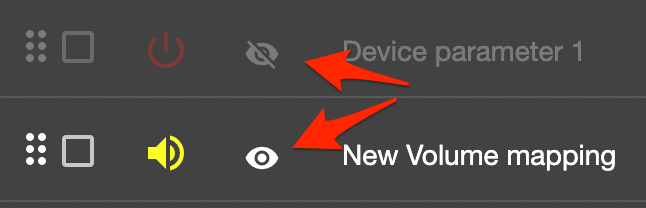
Each mapping can now be enabled/disabled by clicking the ‘eye’ icon.
When a mapping is disabled, it is visually dimmed.
Disabled mappings will not be included in the generated MIDI remote script.
There is also a bulk enable/disable option available at the top of the Mappings Table. Use it to bulk enable/disable all checked mappings in the table.
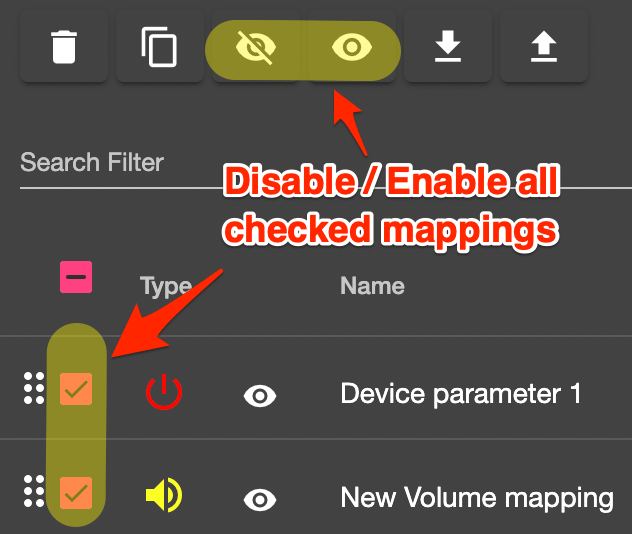
You can also use the search filter to display only 'enabled' or 'disabled' mappings in the mappings table.
For details, see: (Mappings Table') Enhanced Search Filter Options.
The Problem
Previously, changing the 'selected controller input' and 'mode' for each mapping required opening the settings form, finding the correct setting, changing it then clicking save.
This would become extremely time consuming when needing to make multiple changes.
The Solution
The 'controller input' and 'mode' fields in the mapping table are now clickable menus. Allowing you to set these options directly in the table without the need to open the settings form each time.

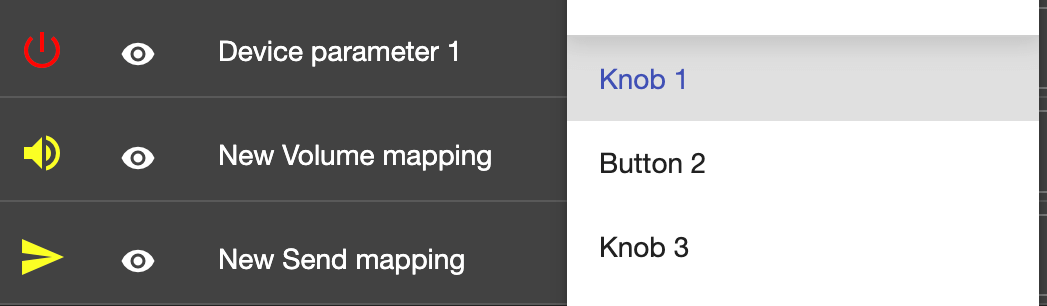
The contents of these menus can also be filtered. For details see 'Search and Filtering added to 'Controller input' and 'modes' settings
The Problem
When setting an assigned controller input for a mapping, previously you needed to manually scroll through through your list of inputs. If you had many inputs in your controller template, this could become time consuming (the same for selecting a mode for your mapping).
The Solution
There is now a search filter input in each ‘controller input’ and ‘modes’ menu. Allowing you to quickly search for the controller input/mode you want to select.
This is available in both the table menu and settings form menus for ‘controller input’ and ‘modes’ menus.
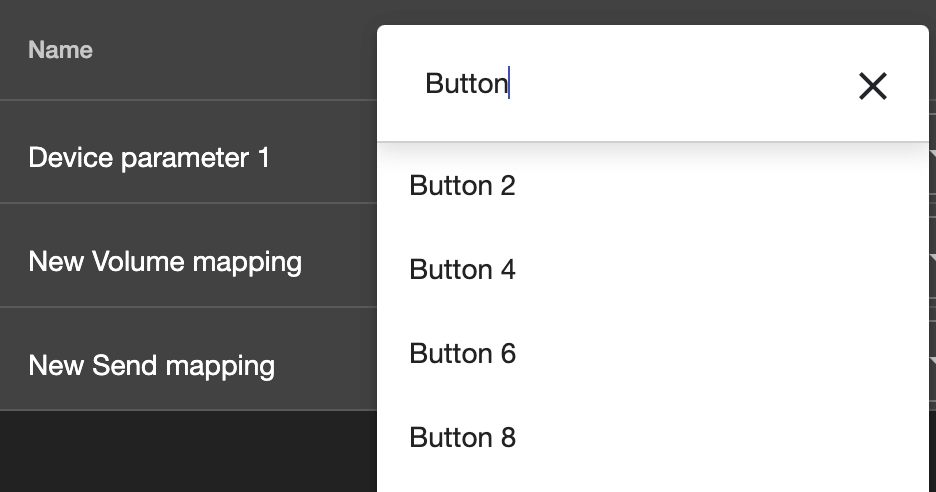
Search text is remembered
In the mappings table view, your inputted search is remembered across all menus.
Example: you enter ‘Button’ into the search field for the controller input menu, this filters all controller template inputs to only inputs which include the keyword ‘Button' in their name. You can then open any other input menu and 'button’ will still be input.
(Clicking the cross will clear the text).
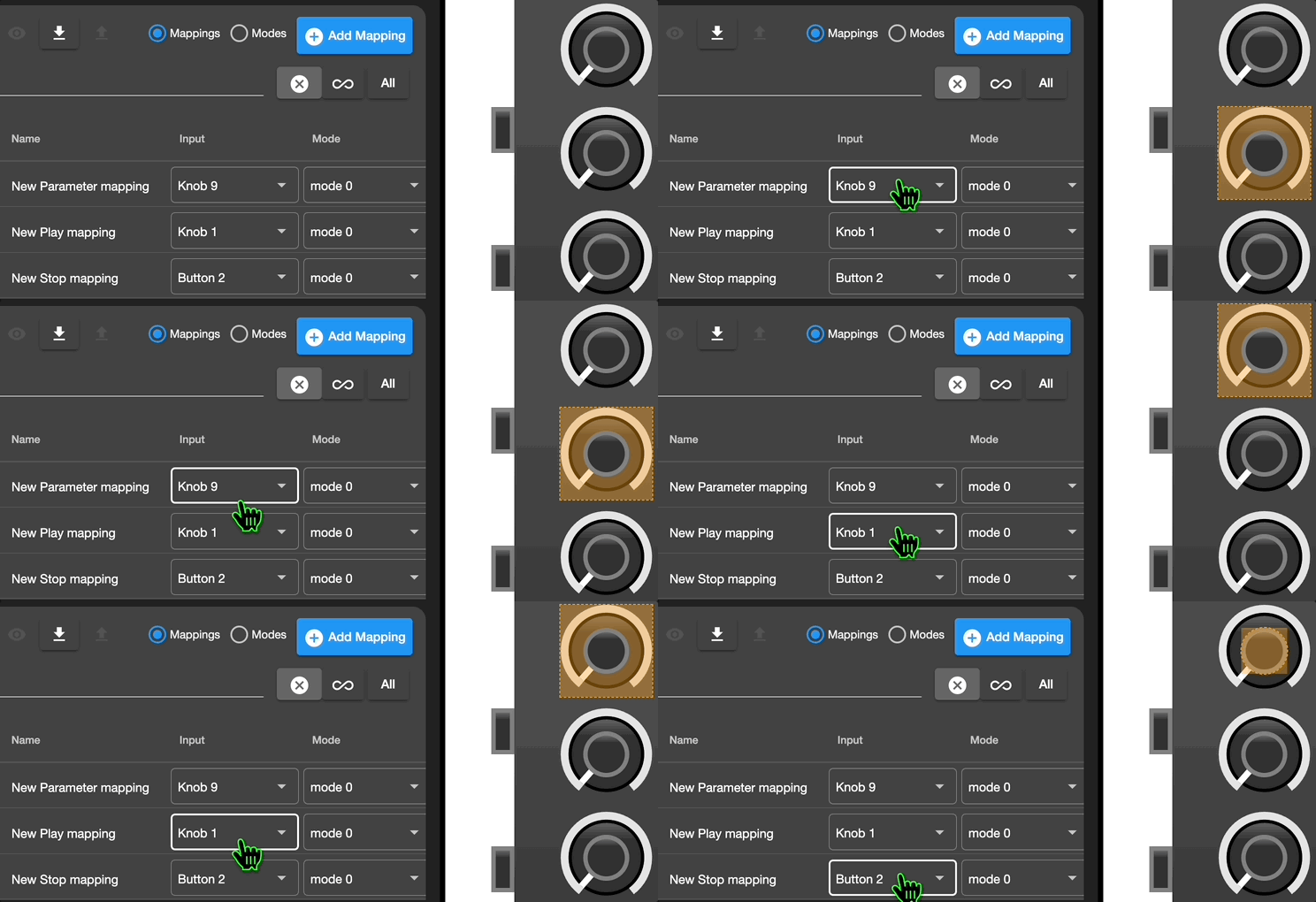
Also note: when these menus are open, you can still interact with the controller template, which is handy for quickly checking the names of inputs.
Hover over an input menu which has an input selection, and the corresponding controller input now highlights in the controller template.
This enables you to visually see the input you have chosen for a mapping in the controller template.
Workflow speed hack
Select an input (this will open the menu, select an input to close it),
You can then use the arrow keys to quickly select through all inputs in the controller template. Visually seeing the selected input, so you can quickly and visually select the input which you want.
To make it even quicker, first filter to only the inputs you want to search through (i.e. knob) for even faster selecting.
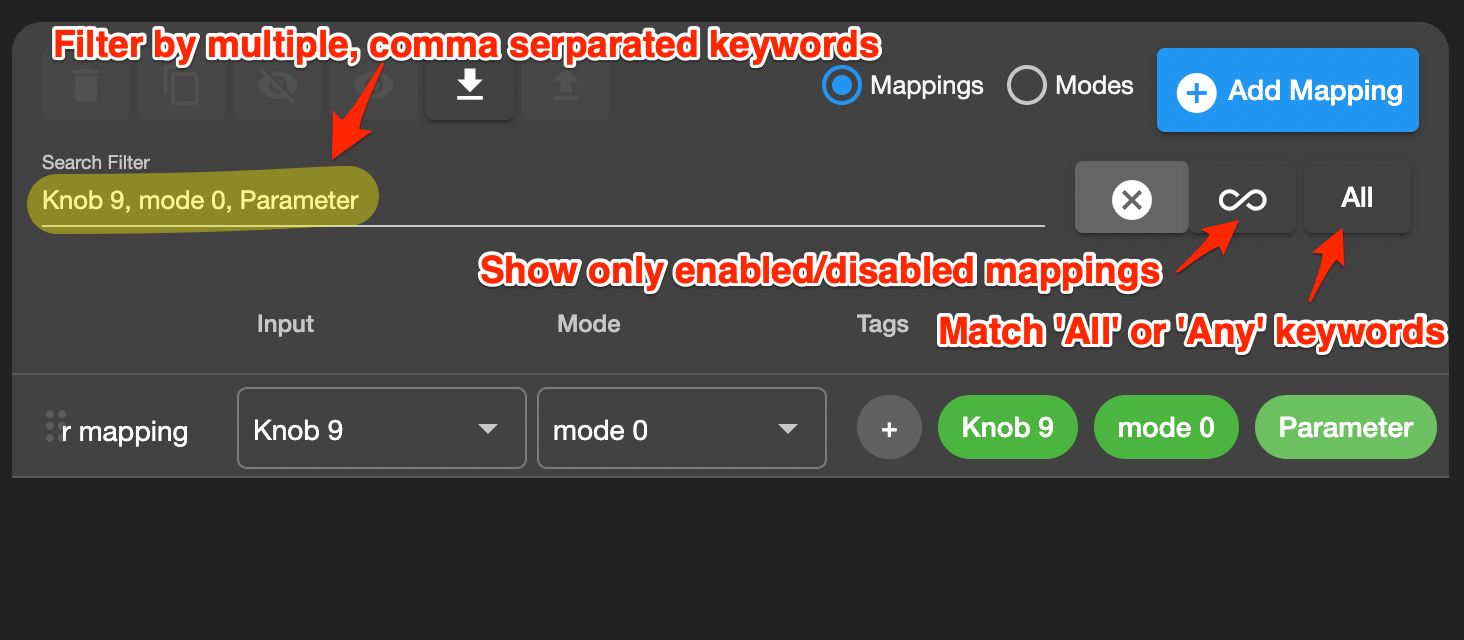
Filter enabled/disabled mappings
Enabled & disabled mappings can be filtered for by using the button to the right of the search field.
This button adds the following keywords to the search filter:
To show only enabled mappings: isEnabled
To show only disabled mappings: isDisabled
To show all mappings: remove both
The button automatically adds/removes the isDisabled and isEnabled tags accordingly
Filter for multiple keywords using commas
You can now add multiple, comma separated search keywords and they will be checked individually by the search filtering system. This is used by the new 'Clickable Tags' (see 'Clickable Tags & Auto Tags')
Match All or Any
- If 'All' is selected, only mappings which match all of the comma separated keywords in the search filter will display in the table.
- If 'Any' is selected, mappings which match any of the comma separated keywords will display in the table.
Clickable Tags
For each mapping, all of tags in the ‘tags’ column are now clickable buttons.
When clicked they are applied to the search filter which instantly filters the mapping table for this tag.
Tags visually highlight in green if they appear in the search filter.
Also an 'Add tags' button is displayed, which, when clicked, opens the settings form where you can add/edit your own specific tags for the mapping.

Auto Tags
The new 'Auto tags' setting automatically adds the following clickable tags to each mapping ‘selected input’, ‘selected mode’, 'mapping type’ for easy filtering.
Note that some mappings (such as reactions & session box) don’t have selected inputs.
Auto Tags can be turned on/off in App settings menu.
The Problem
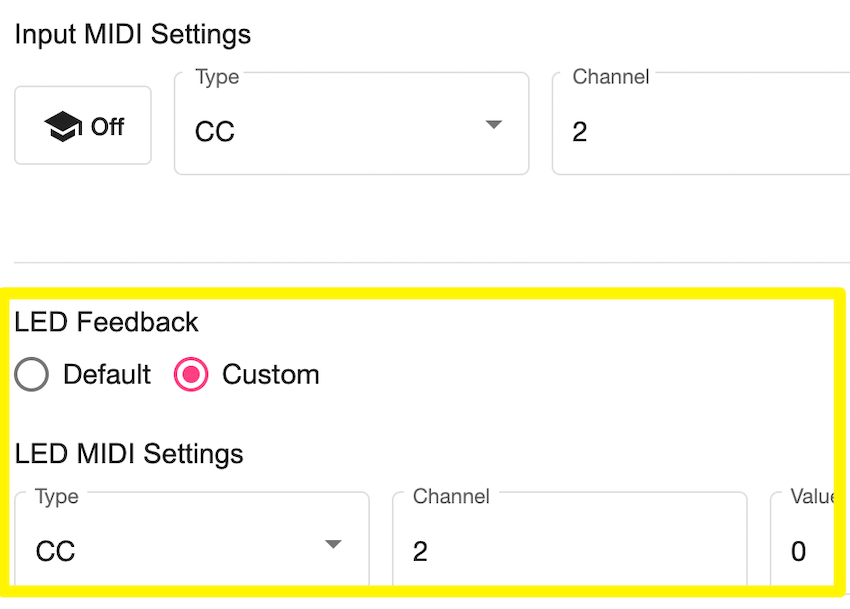
Some MIDI controller inputs require different MIDI data for LED feedback than what they use for MIDI input.
The Solution
Controller inputs now have their own LED feedback section where you can define separate MIDI data to use for sending LED feedback to.
This includes usage with Session Box and Reactions (send velocity value to midi input).
The Problem
For on/off inputs, there was no way to set a range of velocity values as ‘on’ or ‘off’. This was a problem for velocity sensitive inputs such as pads and keys as its pretty much impossible to hit an exact velocity value each time you press it.
The Solution
On/Off, increment (mapping form only) and decrement (mapping form only) input types now have a new option ‘is between’ for setting a range of velocity values which should be considered on or off.
For input types: on/off, increment and decrement,
‘on’ and ‘off’ velocity setting now have options to choose either:
'is between' or ‘is equal to’.
Is Between
'is between' allows you to choose a range of velocity values which will be considered on or off.
Example:
'On' if received velocity ‘is between’ [67] and [127]
'Off' if received velocity ‘is between’ [0] and [66]
Is Equal To
'is equal to' is for setting a specific value to consider as on/off.
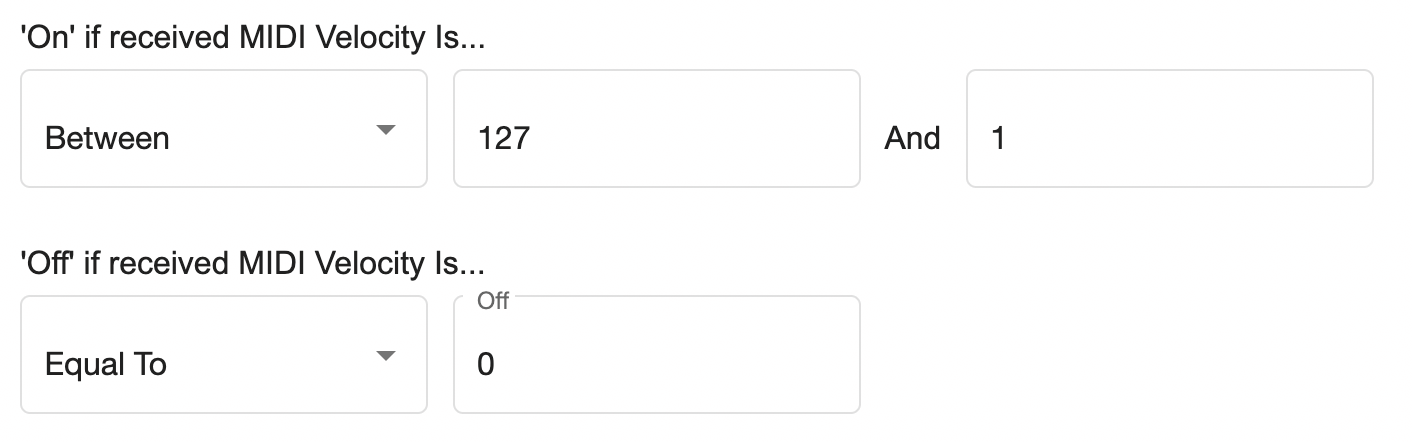
New default values for Button, Pad & Key inputs types
The new defaults values for these input types when you first add them to your controller template are:
‘on' if velocity is between [1] and [127]
’off' if velocity is equal to [0]
The Problem
Many Relative controls on MIDI controllers are configured to send various velocity values based on how fast they are turned. Previously this couldn’t be configured in CSS without a work around.
The Solution
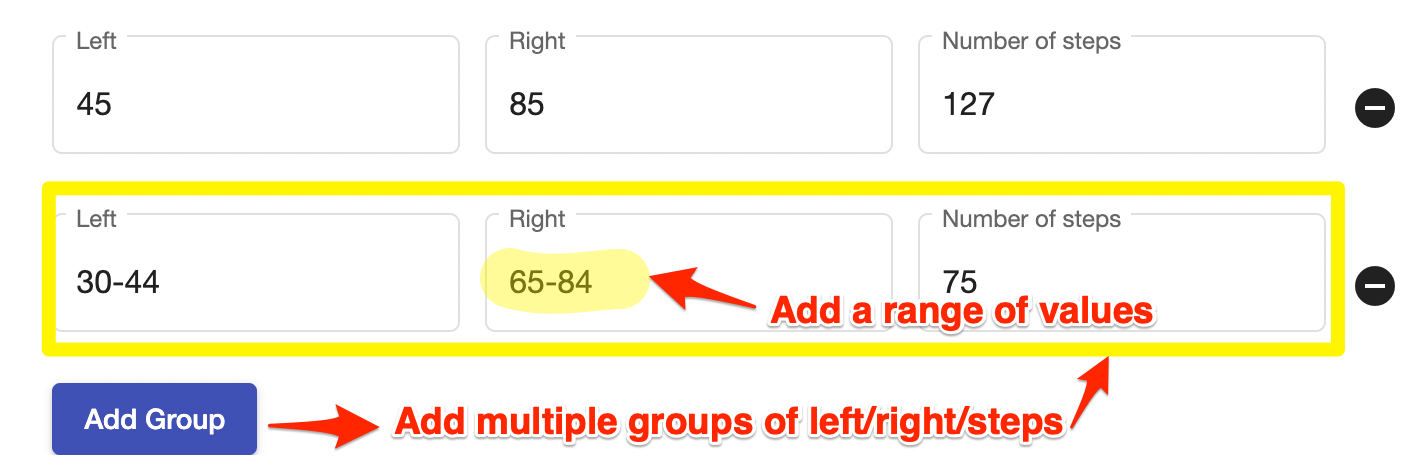
To allow for this, Relative input types can now have multiple groups of 'left/right/steps' velocity settings. This allows a speed (number of steps) to be defined for each set of left/right settings.
Use a range of values per left/right input
If you need to input a large amount of velocity values for the same speed (number of steps), you can set a range of values rather than needing to input each individual velocity value. Put a dash between the 2 values in order to do this.
i.e inputting 65-84 will match all velocity values between (and including) 65 and 84.
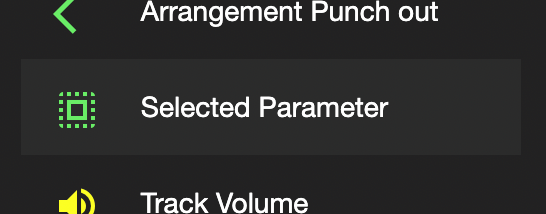
We have added a new mapping type to the mapping types menu called ‘Selected Parameter’.
With this in your script, you can click a parameter in your Ableton session and instantly have control of it with your chosen controller input. It’s super simple to set up but very powerful.
The Problem
If you have a Reaction which uses multiple listeners and you want to check which listener fired the Reaction, 'reaction_listener_number' can be problematic as it counts all of the actions for a listener. So if you have multiple reactions using the same listener type it will count all actions attached to it regardless of the Reaction they came from.
The Solution
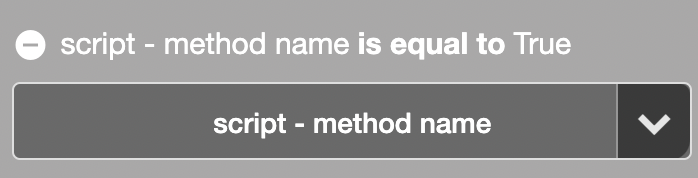
We have added a new option into Action Blocks called ‘method_name’.
This contains the name of the listener method which the action block is called from.
Available in Reactions value menus under: script > method name
Handy if you have multiple listeners in an a Reaction and you want to distinguish between which listener fired the action block.
Examples
lom listeners: _mode9_self_song_view_add_selected_track_listener_id_11,
script listeners: _script_was_initialised,
midi controller input listeners: midi_cc_ch_1_val_12_mode9_listener
Note: you can of course, output method_name to the CSS log to see the name of the listener (script > display a value in CSS log) .
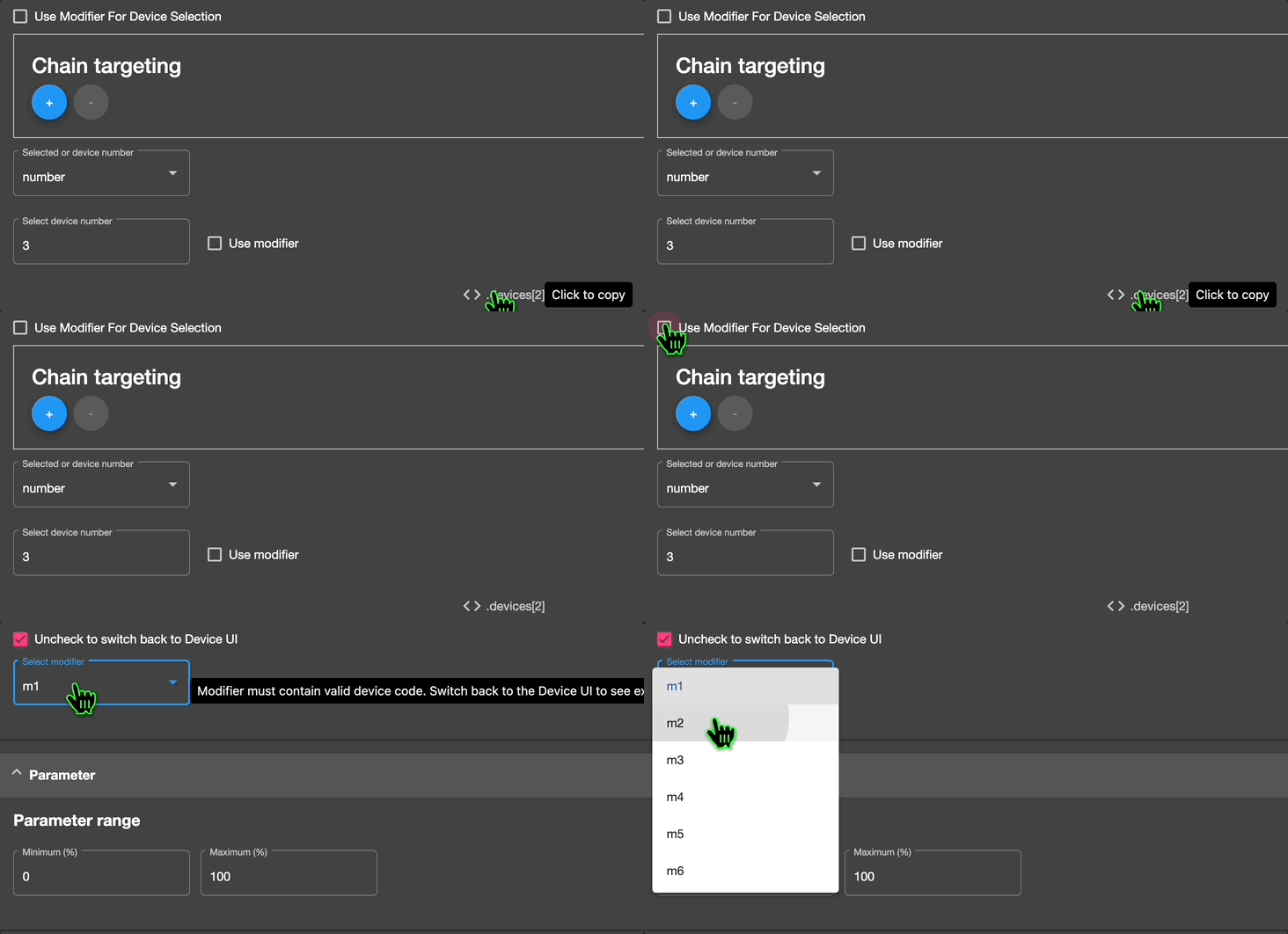
You can now use modifiers to set the entire device or track location code.
There is a checkbox for switching between UI and modifier views.
When in UI view, the code which the UI will generate is displayed at the bottom of the panel which automatically updates when you change the selection.
You can use this to help you set the correct code in the modifier.
Note: modifier values are set using 'Reaction' mappings.
Track example (this code will set the mapping to track 3):
self.relative_tracks_dict[2]
Device example (this code will set the mapping to device 2):
.devices[1]
reload_led_listeners() is a new method which you can now call in your Reactions to reload all of the active mode’s LED listeners.
Use after changing modifier values to ensure that LEDs update correctly.
The ‘selected device changed’ listener now also fires when the ‘selected chain’ is changed on a device. Use ‘selected device changed’ listener in your Reactions and this will now also fire when you change the selected chain in an instrument/device rack.
The Problem
Connecting a midi controller after the script is already added in preferences meant that the midi controller wouldn’t receive any midi LED feedback which is sent when the script was initialised,
this was because the init function in the script would have already ran.
The Solution
Scripts now re-send LED feedback to the connected midi controller after it is connected.
New Listener
New Reaction Listener added: script > port settings were changed
This fires when the list of midi controllers changes. i.e. a midi controller is connected or disconnected.
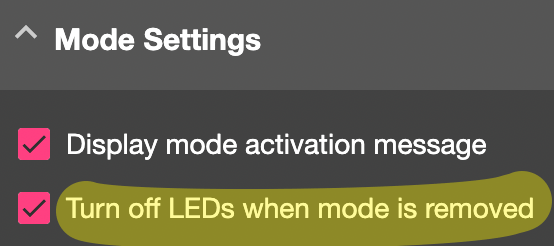
When a mode is removed, self.turn_inputs_off() is now called.
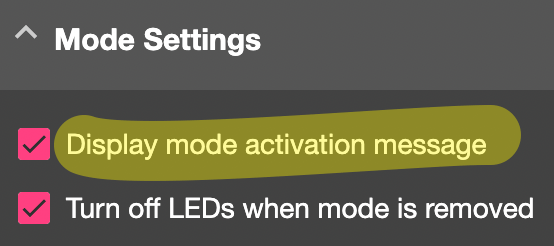
A new checkbox is now available in each mode settings form, ‘Turn off LEDs when mode is removed’
If unchecked, the LEDs linked to mappings in the mode will not turn off: self.turn_inputs_off() is not called.
This effectively means that inputs which don’t have parameters assigned on the new mode won’t get updated when new a mode is activated.
Added a new option in the Mode settings forms to turn on/off the status message which is displayed when switching Modes.
Note: this option is disabled for Global Modes.
When controlling a device parameter in Ableton, the parameter’s name is now displayed in Ableton Live's status bar.
Improved in 3.0
The Problem
Previously in the mapping settings form, only 1 panel could be expanded at a time and the currently open panel was not remembered.
The Solution
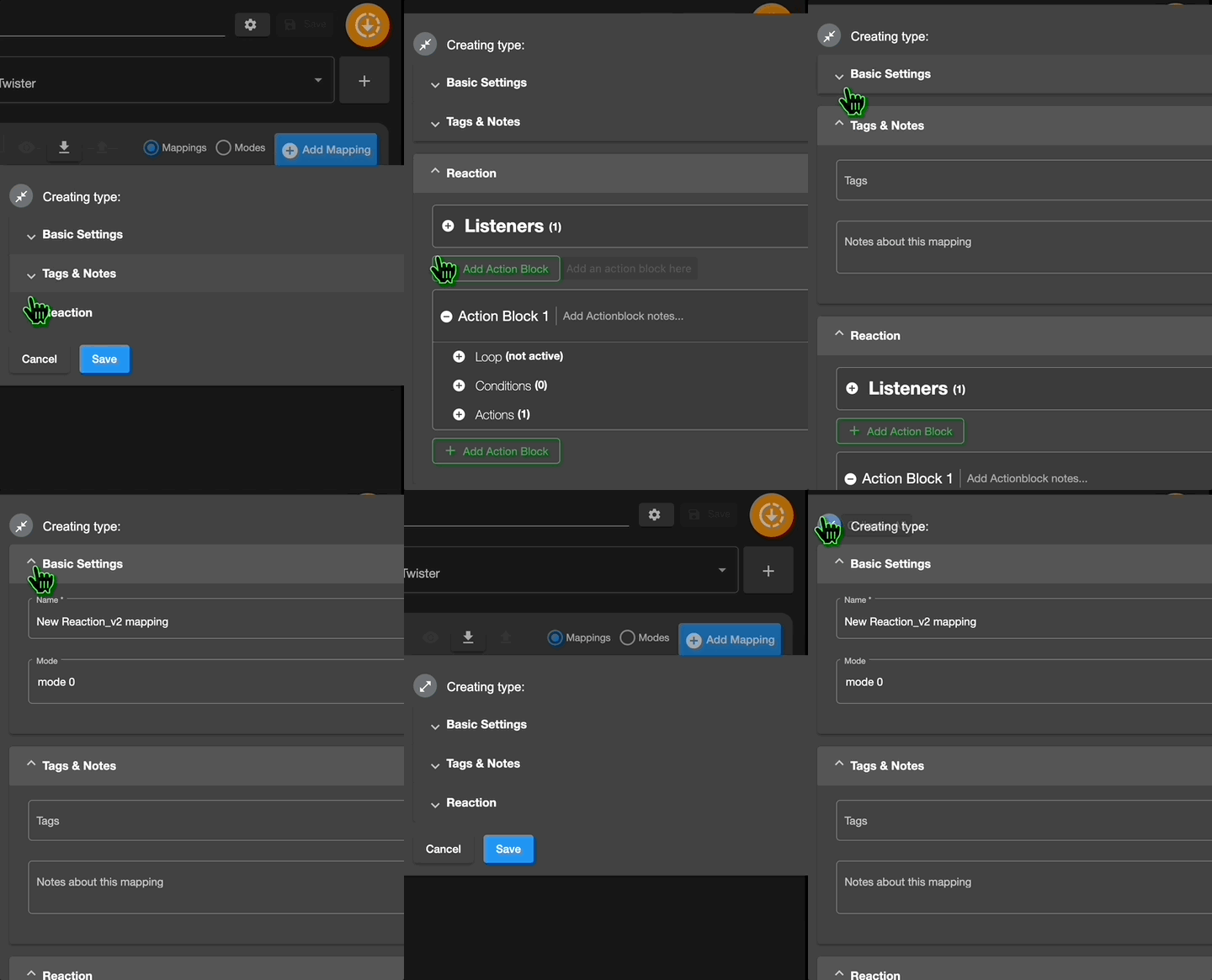
Each panel in the mapping form is now expanded by default.
You can individually collapse/expand each panel.
You can collapse and expand all panels using a single button.
The collapsed/expanded state of each panel is remembered across all mappings. So when you open the next form, the collapsed/expanded state of panels is remembered.
Example: collapse all panels except the Reaction panel, close the form and open another Reaction. The collapsed state of each panel are remembered leaving only the Reaction panel expanded.
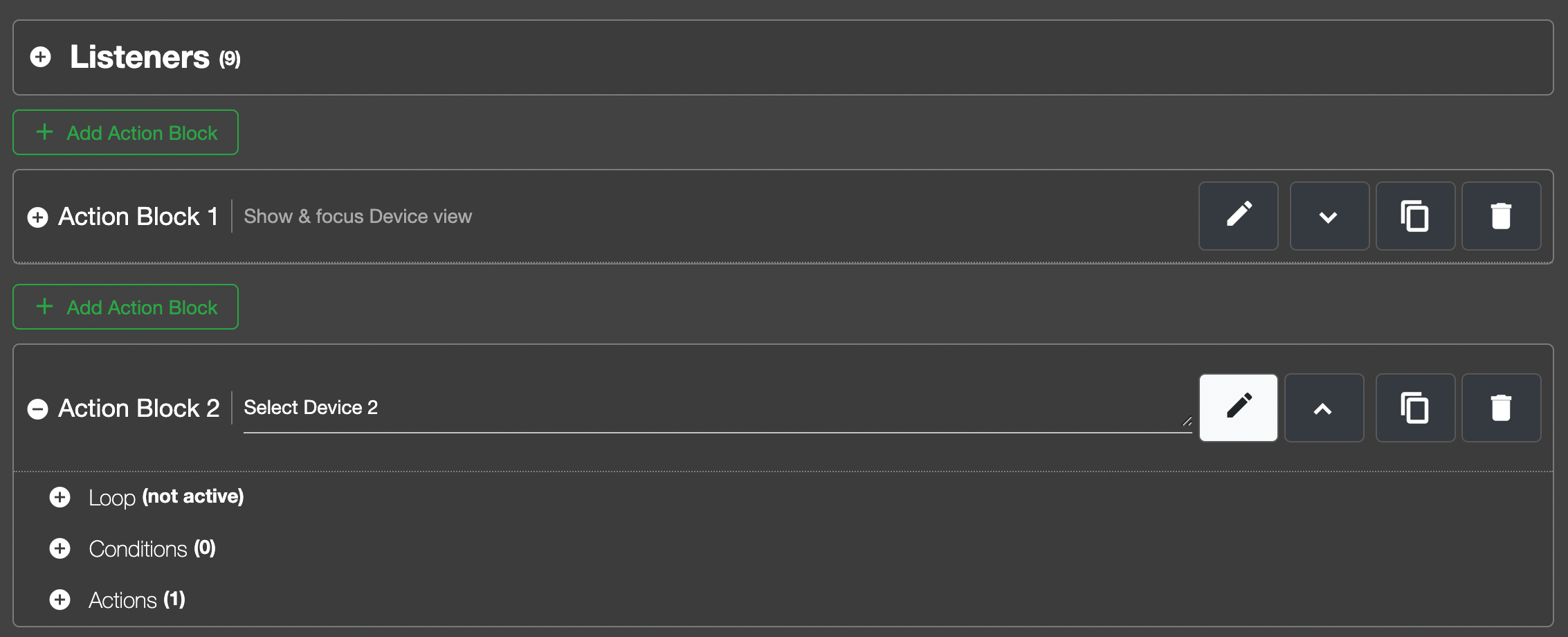
The Reactions forms have been tweaked in a variety of ways...
Search Filters in Menus
We have added a search filter in each Reaction menu (listener, conditions left/right, action)
Whenever you open one of these menus, the search input is auto focused so you can immediately start typing into the search box.
A 'clear text' button appears when you begin entering text into the search filter for quickly removing the filter.
A More Condensed the layout
In order to maximise screen real estate, the spacing of Reaction form elements has been reduced, enabling you to see more data at one time.
Listeners, action blocks, loop section, condition section have all been condensed for better overview.
More Collapse/Expand Options
To help you focus on specific parts of a Reaction, we have added collapse/expand controls to each piece of a Reaction.
- Completely Collapse/Expand Each Action Block
- individual listeners/conditions/actions can now be collapsed & expanded
- when individual listeners/conditions/actions are collapsed, The selected menu name or custom code is displayed. It is trimmed so as to fit on one line
Block Notes
Action block notes display when a block is collapsed
Edit notes by clicking on the text area.
For individual listeners/conditions/actions, the code/menu switch is now on the right
The Problem
Custom code fields would always reset to 3 rows in height, meaning you need to drag it each time to to the correct height.
The Solution
The height of Custom Code fields now auto snaps to the height of the code inside it.
Custom code fields are now more friendly for entering Python code.
They handle tab indenting correctly & undo code changes correctly.
We have added the ability to move individual listeners up & down within the Reaction Listeners list.
Reaction Listeners now display their descriptions when hovering the cursor over the Listener menu.
The Problem
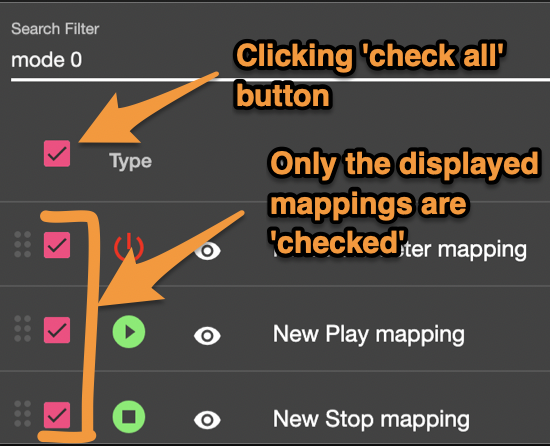
Previously, clicking the check all/none mappings would check all mappings/modes in the entire table regardless of the current table filter setting.
The Solution
Clicking the 'check all' checkbox, now only applies to the mappings which are displayed in the current table filter.
The Problem
When clicking the custom option in ‘control override’, the pre-populated data was always the same. This would mean that you needed to configure all of the settings.
The Solution
Now whenever you click ‘custom’, the data from the currently selected ‘controller input’ for the mapping is pre-populated into the custom section’s fields.
This helps to quickly making adjustments to the fields which differ from the default settings rather than needing to find and enter the correct details each time.
It didn’t make sense having the 'shape' setting in the velocity section, so this is now moved to the top of the form.
The Problem
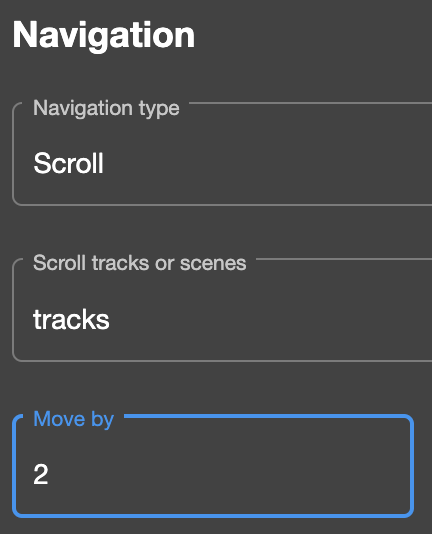
Using the ‘steps’ field to set how many tracks/scenes to move by when scrolling is confusing to the user.
The Solution
Session Box Navigation & Highlight Navigation now have a new input field in the ’navigation’ section called ‘move by’ where the number of tracks/scenes to move by with each press/turn is set (this defaults to 1 if it isn’t set)
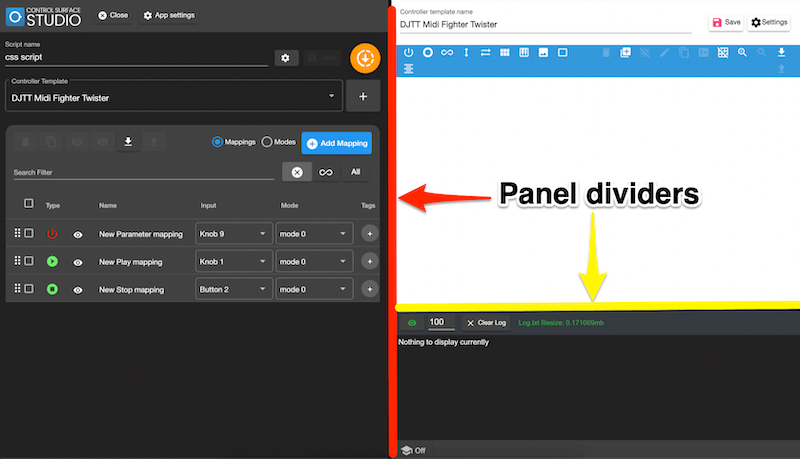
You can now close a script and when you open a script, the panel divider’s width and height settings are remembered.
The 'Controller Input' menu is now moved into top panel.
'Notes & Tags' have been moved to their own panel.
Scrolling with buttons now loops around endlessly
Using buttons to scroll through modes will now loop around endlessly rather than stopping when you reach the end of the mode list.(Use 'increment' or 'decrement' to select the direction to scroll in)
If you simply use on/off with scroll, this will select the first and last modes in the list ('on' selects the last mode, 'off' selects the first).
Scroll order matches table order
As the 'Mode Selector' mapping type can now be placed in the new 'Global' mode, this means you can use 1 instance of it to scroll through all (none global) modes in your script.
The order they scrolled in will now match the order that the modes are listed in the modes table. You can re-arrange the modes to suit your needs.
Fixed in 3.0
Fixed using buttons with value parameters.
Example: Volume
Set the min and max in the volume settings,
You can now switch between the min and max values using either toggle, momentary or delay in the control override.
Increment & Decrement also fixed.
The Problem
Previously if you had a Controller Input mapped to an Ableton parameter but you then delete the parameter in Ableton, the LED on the midi controller would remain on.
i.e. you have a MIDI encoder mapped to a track volume, but you delete the track in your Ableton session.
The Solution
When things are changed/removed in your Ableton session (i.e. tracks, devices, scenes etc), the LEDs on the midi controller are updated, automatically sending the 'global led off' setting to any which no longer have parameters attached.
The Global LED Off value will be sent to an input if its attached parameter doesn’t exist in Ableton.
‘Default controller LED values’ had the labels ‘LED on’ twice instead of LED on and LED off. This is now fixed to read 'LED on' and 'LED off'
The calculation of where to scroll the session box to was wrong, meaning the session box would continue moving off the screen past its right side border until it reached the left border.
This would mean that the session box would scroll off the session instead of stopping when the right border reached the last return track.
This is fixed, the session box will now stop moving when it's right border reaches the last track.
The LED feedback wasn’t including return tracks and master in its led feedback calculations, this is now fixed.
Tempo mapping type now works as expected.
Scripts can now be generated without error if the controller template contains 'LED Display' input types.
There was a bug where scripts could only be generated if the 'remember me' checkbox was checked when logging in.
Fixed this issue: When adding a mapping like Mute or Solo, they don’t seem to come with a built in function to check if the track they are trying to control actually exist in the song. So if you click the mute button on your controller and the track is not there, the Log.txt gets absolutely blasted with a huge amount of error messages. (But there is no indication that something is going wrong in Live itself)
The default feedback settings for A/B Crossfade Assign were being overwritten, causing them to effectively display LED progress on the MF Twister backwards. This is now fixed.
These links are now fixed.
Empty lines of code (in Reaction custom code fields) were being left in as empty lines in the generated script. These are now automatically removed.
Fixed selected device listener, it now reloads custom lom listeners when selected device is changed and also when device list in the selected track is changed.
Visible Tracks Listener was not firing when used.
This was because its custom lom was being added removed when tracks changed, preventing it from firing.
Live object model > device > all devices > set is collapsed
The code was missing “.view” between the Device reference and .is_collapsed.
Previously the code was being set as:
[Device].is_collapsed
Now it is set as:
[Device].view.is_collapsed